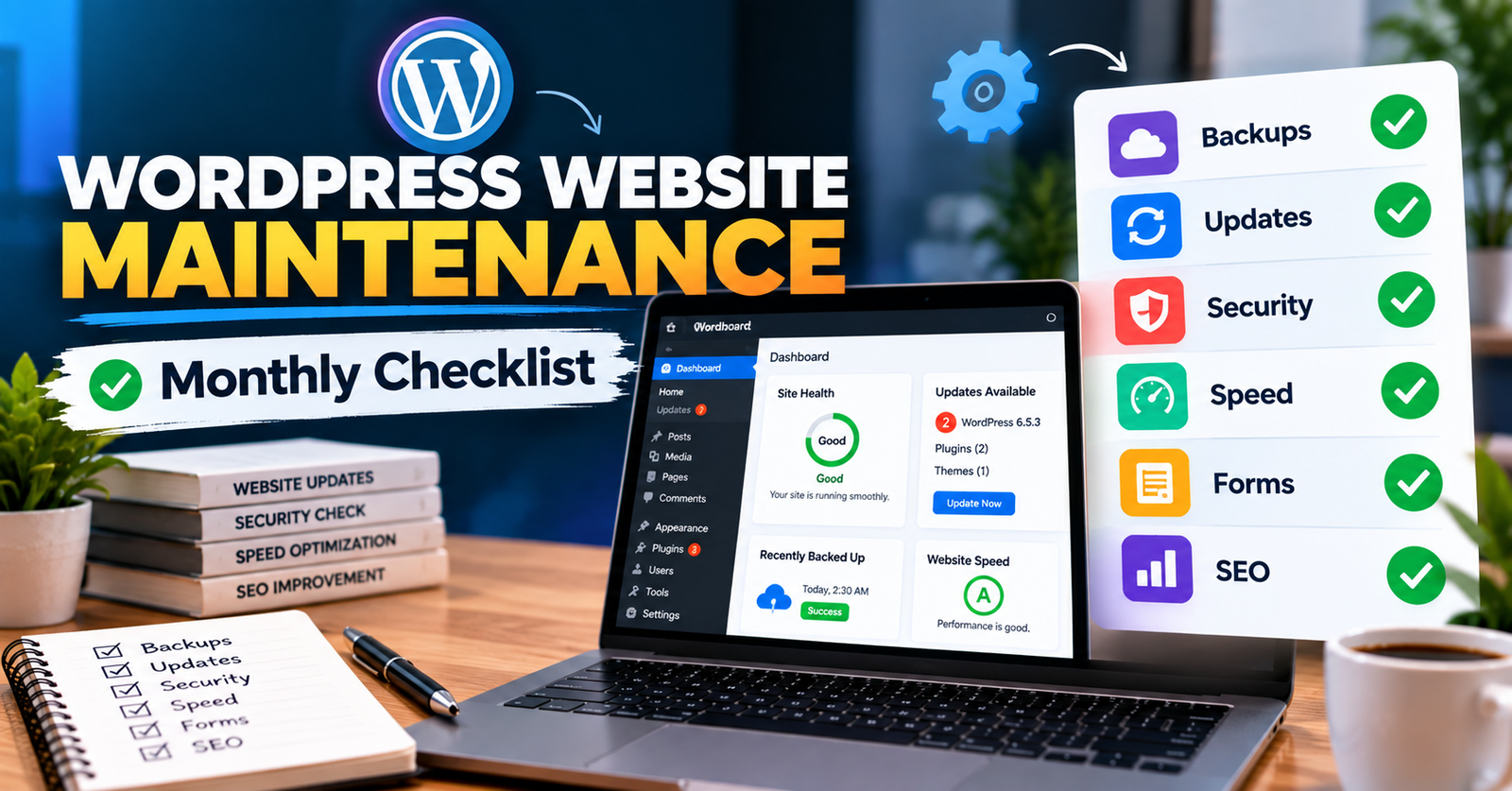
A WordPress website needs regular maintenance to stay secure, fast, and working properly.
Plugins need updates. Forms need testing. Backups need checking. Broken links can appear. Pages can become slow. Security problems can happen without any obvious warning.
For a business website, these small problems can become expensive if nobody notices them.
The good news is that WordPress maintenance does not have to be complicated.
Here are the most important things you should check every month.
- Back Up Your Website
Start with a backup.
A website backup gives you a copy of your website that you can restore if something goes wrong.
A good backup should normally include:
WordPress files
Themes
Plugins
Uploads
Database
Do not assume that a backup exists just because your hosting company offers backups.
Check that backups are actually being created.
It is also useful to keep backups somewhere separate from your main website server.
Most importantly, make sure you know how the website can be restored if needed.
A backup that cannot be restored is not very useful.
- Update WordPress Core
WordPress regularly receives updates.
These updates may include:
Security fixes
Bug fixes
Performance improvements
New features
Compatibility improvements
Keeping WordPress updated is important.
However, you should not update an important business website without basic precautions.
Before updating:
Create a backup.
Check important plugin compatibility.
Run the update.
Check the website afterward.
For larger or more complex websites, testing major updates on a staging website can be safer.
- Update Your Plugins
Plugins are one of the most important parts of many WordPress websites.
They can power your:
Contact forms
SEO
Security
Page builder
E-commerce
Booking system
Membership system
Analytics
Website backups
Plugins also receive regular updates.
Leaving plugins outdated for a long time can create compatibility and security problems.
But do not simply update everything and close the website.
After plugin updates, check that important functionality still works.
If your website uses Elementor, for example, check important Elementor pages after major updates.
- Update Your Theme
Your WordPress theme should also be kept updated.
Theme updates can include security fixes, bug fixes, and compatibility improvements.
If you are using a child theme with custom code, be careful when making changes.
Always understand how the website was built before changing important theme files.
After an update, check your:
Header
Footer
Homepage
Blog
Mobile layout
Important templates
Make sure nothing has changed unexpectedly.
- Test Your Contact Forms
This is one of the easiest maintenance tasks to forget.
Your contact form can look perfectly normal while email notifications are not reaching you.
That means potential customers may be contacting you, but you never receive their messages.
Once a month, submit a test form.
Check:
Does the form submit?
Does the success message appear?
Do you receive the notification?
Does the visitor receive a confirmation email if one is supposed to be sent?
Are submissions being stored correctly if your setup supports this?
For a lead-generation website, form testing is extremely important.
- Check Your Website on Mobile
Do not only check your website from your computer.
Open it on a real phone.
Look at your important pages.
Check for:
Text that is too small
Buttons that are difficult to tap
Broken layouts
Images going outside the screen
Strange spacing
Popups blocking content
Forms that are difficult to use
Horizontal scrolling
WordPress or plugin updates can sometimes cause unexpected layout problems.
A quick mobile check can help you find them early.
- Check Website Speed
Website performance can change over time.
You may add new images, plugins, tracking scripts, videos, or widgets.
Each addition can affect performance.
Test important pages such as:
Homepage
Main service pages
Contact page
Landing pages
Product or checkout pages if you run an online store
You can use tools such as Google PageSpeed Insights to identify possible performance problems.
Look beyond the score.
Pay attention to issues such as large images, slow server response, layout shifts, and unnecessary scripts.
If the website has become noticeably slower, investigate what changed.
- Look for Broken Links
Broken links create a poor experience.
A visitor clicks a link expecting to find useful information but lands on a 404 page instead.
Broken links can appear when:
A page is deleted
A URL changes
An external website removes a page
A product is removed
An old blog post contains outdated links
Check important internal and external links regularly.
If you change a page URL, consider whether a redirect is needed.
- Check for 404 Errors
A 404 error happens when someone tries to visit a page that does not exist at that URL.
A few 404s are normal.
But many 404 errors can indicate a larger problem.
For example, you may have changed your URL structure or deleted pages that still receive traffic.
Review important 404 errors and decide whether the visitor should be redirected to another relevant page.
Do not automatically redirect every missing URL to the homepage.
Use a relevant destination whenever possible.
- Review Website Security
You do not need to wait until a website is hacked before thinking about security.
Regularly check for unusual activity.
Depending on your setup, look for things such as:
Unknown administrator accounts
Unexpected plugins
Suspicious files
Failed login attempts
Security warnings
Unexpected website changes
Also make sure administrator accounts use strong, unique passwords.
Remove old accounts that no longer need access.
Security should be part of regular website maintenance, not something you only think about after a problem happens.
- Remove Plugins and Themes You Do Not Need
Over time, WordPress websites can collect unnecessary plugins and themes.
Maybe you tested a plugin six months ago and never used it again.
If you no longer need it, consider removing it.
The same applies to unused themes.
Keep what your website actually needs.
A cleaner WordPress setup is generally easier to manage and troubleshoot.
Before removing anything, make sure it is not being used by an important part of the website.
- Check Your SSL Certificate and HTTPS
Visitors should normally access your website securely using HTTPS.
Check that your SSL certificate is working and that browsers are not showing security warnings.
Also look for mixed-content problems.
This can happen when a secure HTTPS page still loads certain resources using an old HTTP URL.
Security warnings can reduce visitor trust, especially on websites that collect contact or payment information.
- Review Your WordPress Users
Go through the user accounts that have access to your website.
Ask:
Does this person still need access?
Do they need administrator access?
Is there an account I do not recognize?
A freelancer, developer, employee, or agency may have needed access in the past but no longer needs it.
Remove unnecessary accounts or reduce permissions when appropriate.
Not everyone needs to be an administrator.
- Check Important Website Content
Website maintenance is not only technical.
Your content also needs attention.
Check whether your website still shows the correct:
Phone number
Email address
Business hours
Services
Pricing
Team information
Service areas
Offers
Contact details
Old information can confuse visitors and cost you leads.
For example, if your business has changed its phone number but an old service page still shows the previous number, potential customers may never reach you.
- Check Your SEO Basics
You do not need to perform a complete SEO audit every month.
But you should keep an eye on important issues.
Check things such as:
Important pages are still indexed
Page titles are correct
Meta descriptions are present where needed
Important pages have not accidentally been set to noindex
Sitemap is accessible
Important redirects work
There are no obvious crawl problems
Google Search Console can help you identify search and indexing issues.
If organic traffic suddenly drops, investigate rather than waiting several months.
- Review Website Analytics
Take a few minutes to understand what is happening on your website.
Look at:
Website traffic
Popular pages
Traffic sources
Important landing pages
Form submissions
Conversions
Search traffic
You do not need to check hundreds of numbers.
Focus on information that helps you make decisions.
For example, if a service page receives a lot of visitors but almost nobody contacts you, the page may need improvement.
- Check Your Main Conversion Paths
Imagine you are a new customer.
Visit your website and try to complete the main action.
For example:
Homepage → Service Page → Request a Quote
or:
Google → Landing Page → Book an Appointment
Go through the entire process yourself.
Check whether anything feels confusing.
Ask:
Is the CTA easy to find?
Does the button work?
Is the form easy to complete?
Does it work on mobile?
Is the next step clear?
A website can be technically healthy but still lose customers because the conversion path is confusing.
A Simple Monthly WordPress Maintenance Checklist
You do not have to make website maintenance complicated.
Every month, check:
Website backups
WordPress updates
Plugin updates
Theme updates
Contact forms
Mobile layout
Website speed
Broken links
404 errors
Security
User accounts
SSL/HTTPS
Important content
Basic SEO
Analytics
Main conversion paths
For a simple business website, many of these checks can be completed fairly quickly.
Complex websites may require more testing.
How Often Should You Maintain a WordPress Website?
Not every maintenance task should wait for a monthly check.
Backups may need to run daily or even more frequently depending on how often the website changes.
Security monitoring may also need to run continuously.
E-commerce, membership, booking, and high-traffic websites usually need more frequent attention than a small brochure website.
Think of the monthly checklist as a minimum regular review, not a rule that every task should only happen once a month.
What Happens If You Do Not Maintain WordPress?
Sometimes nothing happens immediately.
That is why website maintenance is easy to ignore.
But over time, you may experience:
Outdated software
Security vulnerabilities
Broken forms
Website errors
Slow performance
Broken layouts
Missing backups
SEO problems
Compatibility issues
The biggest problem is that you may not notice an issue until a customer does.
Regular maintenance helps you catch problems earlier.
Can You Maintain WordPress Yourself?
Yes, especially if you have a simple website and understand WordPress.
Basic tasks such as checking forms, reviewing pages, creating backups, and installing safe updates can often be handled internally.
However, more complex websites require more care.
If your website includes custom code, WooCommerce, bookings, memberships, advanced forms, integrations, or important business functionality, updates should be tested more carefully.
Need Help Maintaining Your WordPress Website?
Your website should not only look good when it launches.
It should continue working properly afterward.
I help businesses maintain, fix, and improve WordPress and Elementor websites.
This can include regular updates, backups, website checks, Elementor fixes, speed improvements, responsive fixes, form testing, SEO improvements, and troubleshooting.
If you do not have time to regularly check your WordPress website, I can help keep it maintained and identify problems before they become bigger issues.
Need help with your WordPress website? Get in touch and tell me what you need.