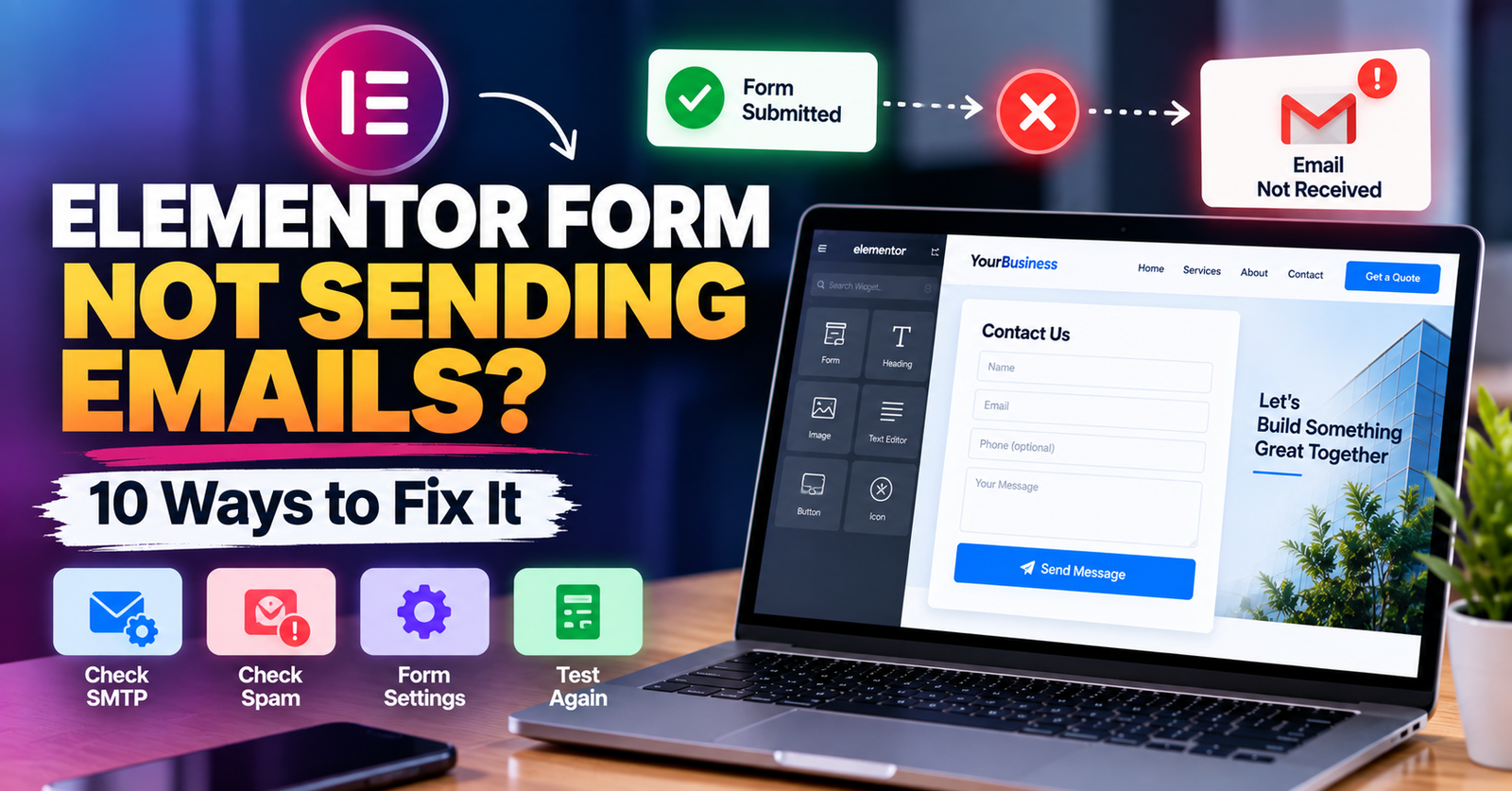
Someone fills out the contact form on your website.
They click Submit.
The form says the message was sent successfully.
But you never receive the email.
This is a common problem with WordPress and Elementor websites.
It can also be a serious problem for a business.
You could be losing quote requests, appointment requests, customer questions, or potential leads without even knowing it.
The good news is that the form itself is not always broken.
The problem could be your Elementor settings, WordPress email delivery, hosting server, spam filtering, SMTP configuration, or something else.
Here are 10 things to check if your Elementor contact form is not sending emails.
- Test the Form Yourself First
Before changing anything, test the problem.
Go to the page containing your Elementor form and submit it like a real visitor.
Use an email address you can access.
Then check:
Did the form submit successfully?
Did you see a success message?
Did you receive the notification email?
Did the visitor’s email receive an autoresponder, if you use one?
Was the submission saved anywhere?
This helps you understand whether the problem is with the form submission itself or only with email delivery.
For example, if Elementor records the submission but no email arrives, the form may be working correctly while the email notification is failing.
- Check the Elementor Email Action
If you are using the Elementor Pro Form widget, open the page in Elementor.
Select your form.
Then find:
Actions After Submit
Make sure Email is included.
If the Email action is missing, Elementor will not send the normal email notification.
You may have other actions there, such as:
Email 2
Redirect
Webhook
Mailchimp
The exact options depend on your setup.
If you need an email notification, make sure the appropriate Email action is enabled.
- Check the “To” Email Address
This sounds simple, but it is worth checking.
Open the form’s Email settings and look at the To field.
Make sure the email address is correct.
A small typing mistake can send notifications to the wrong address or nowhere useful.
For example:
is different from:
Also check whether an old employee, developer, or previous business email is still being used.
If several people need the notification, configure the recipients correctly rather than assuming everyone is receiving it.
- Check Your Spam or Junk Folder
Sometimes WordPress sends the email successfully, but your email provider marks it as spam.
Check your:
Spam folder
Junk folder
Promotions tab
Quarantine folder, if applicable
Search for the subject line used by your website form.
If you find the messages there, the problem may be email deliverability rather than Elementor itself.
Mark legitimate messages as not spam, but do not stop troubleshooting there if the problem keeps happening.
You want your website emails to be delivered reliably.
- Check the “From Email” Address
This is one of the most important settings.
Your form may be configured to send emails using the visitor’s email address as the From Email.
For example, a visitor enters:
and your website tries to send the notification as if it came directly from that Gmail address.
That can create email authentication and deliverability problems.
A better setup is usually to use an email address associated with your own website domain as the sender.
For example:
or:
Then you can use the visitor’s email address in the Reply-To field.
That way, when you click Reply, you can still respond directly to the customer.
- WordPress May Not Be Sending Email Reliably
Elementor relies on WordPress to handle email sending.
By default, WordPress commonly uses its mail functionality through the server environment.
The problem is that some hosting environments are not configured for reliable email delivery.
The form may appear to work, but the message may never reach the inbox.
This is where SMTP can help.
- Configure SMTP Properly
SMTP stands for Simple Mail Transfer Protocol.
You do not need to understand all the technical details to use it.
The important point is that SMTP can provide a more reliable way for your WordPress website to send email than relying on a basic server mail configuration.
Depending on your email provider and website setup, you may connect WordPress to an email delivery service or mailbox.
After configuring SMTP, send a test email.
Do not assume everything works simply because the plugin says the settings were saved.
You should verify that a real email reaches the intended inbox.
- Check Your Domain Email Authentication
Email authentication can also affect deliverability.
Depending on your email setup, records such as SPF and DKIM can help receiving mail systems verify that a server is authorized to send email for your domain.
DMARC can add another layer of policy and reporting.
You do not need to randomly change DNS records.
Incorrect DNS settings can create new email problems.
If your website emails regularly go to spam or disappear, review your domain’s email authentication with your email or hosting provider.
- Check for Plugin Conflicts
Sometimes another WordPress plugin can interfere with forms, scripts, or email delivery.
This can happen after:
Installing a new plugin
Updating a plugin
Updating Elementor
Updating Elementor Pro
Changing caching settings
Adding a security plugin
Changing optimization settings
Think about when the problem started.
Did you make a website change just before the form stopped working?
If possible, troubleshoot plugin conflicts safely on a staging website.
Avoid randomly disabling important plugins on a live business website, especially if the site handles orders, bookings, memberships, or other important functions.
- Check Caching and JavaScript Optimization
Performance optimization is useful, but aggressive optimization settings can sometimes break website functionality.
For example, a caching or optimization plugin may:
Delay JavaScript
Defer scripts
Combine files
Minify JavaScript
Change how scripts load
If the form’s frontend behavior is broken, one of these settings could be involved.
Try clearing all relevant caches first.
This can include:
WordPress cache
Hosting/server cache
CDN cache
Browser cache
Then test the form again.
If the problem started after changing optimization settings, review those changes carefully.
Do not disable every performance feature permanently unless you know which one is causing the problem.
Bonus: Check Elementor Submissions
If your Elementor setup stores form submissions, check whether the missing message appears there.
In WordPress, look for the Elementor submissions area if it is available and enabled on your site.
This can be extremely useful.
Imagine this situation:
A customer submits a quote request.
The notification email fails.
But the submission is still stored inside WordPress.
You may still be able to recover the lead.
This is also why businesses should not rely blindly on email notifications without occasionally checking whether their forms are actually working.
What If the Form Says “Server Error”?
Sometimes the form does not show a normal success message.
Instead, you may see an error when submitting.
This can indicate a different type of problem.
Possible causes can include:
Server configuration
Plugin conflicts
Security rules
JavaScript problems
Incorrect form configuration
Resource limitations
Email configuration issues
Check your browser console and WordPress/server logs if you know how to use them.
For a live business website, avoid making random server changes without understanding what they do.
What If Only One Elementor Form Is Not Working?
If other forms work correctly but one specific form does not, compare their settings.
Check:
Actions After Submit
To address
From Email
Reply-To
Required fields
Field IDs
Conditional logic or integrations
Redirect settings
If the problem affects only one form, the issue may be inside that form’s configuration rather than the entire WordPress email system.
What If No WordPress Emails Are Arriving?
This is different.
If you are not receiving:
Elementor notifications
Password reset emails
WooCommerce emails
WordPress admin emails
Other plugin notifications
then the issue may be broader than Elementor.
You should investigate the website’s overall email delivery configuration.
SMTP configuration, hosting restrictions, DNS authentication, and your email provider are good places to investigate.
Do Not Wait for a Customer to Tell You
One of the dangerous things about a broken contact form is that the website may look completely normal.
You might not know anything is wrong.
Visitors usually will not find another way to tell you:
“Your contact form didn’t send my message.”
They may simply contact another business.
That is why form testing should be part of regular WordPress maintenance.
For an important lead-generation website, test your forms regularly.
A Simple Elementor Form Checklist
If your Elementor contact form is not sending emails, check these first:
Submit a real test
Check Actions After Submit
Verify the To address
Check spam
Check the From Email
Configure email delivery correctly
Test SMTP
Review email authentication
Check plugin conflicts
Clear caching
Review optimization settings
Check saved submissions
Do not change everything at the same time.
Make one change, test again, and continue until you find the actual cause.
Need Help Fixing Your Elementor Contact Form?
A broken contact form can mean lost leads.
And the difficult part is that your website may look perfectly fine while inquiries are failing in the background.
I help businesses troubleshoot and fix WordPress and Elementor websites, including contact form problems, email delivery issues, responsive problems, website errors, speed issues, and other Elementor bugs.
If your Elementor form is not sending emails or you are not sure whether your website is receiving inquiries correctly, I can help investigate the problem.
Need your Elementor form fixed? Contact me and share your website URL and the problem you are experiencing.